
You've forgotten a previously set Administrator Password within the Remote Request Client?
No problem. The password is stored in the Windows System Registry.
WARNING! Using the Registry Editor incorrectly can cause serious, system-wide problems that may require you to re-install Windows to correct them. Use this tool at your own risk..
To open the Windows System Registry Editor and find the forgotten password...
- Click the Windows Start button.
- In the Start Menu, either in the Run Box or the Search box, type regedit and press Enter. In Windows 8, you can type regedit on the Start screen and select the regedit option in the search results. In Windows 10, type regedit in the Search box on the taskbar and press Enter.
- If prompted by User Account Control, click Yes to open the Registry Editor.
- The Windows Registry Editor window should open.
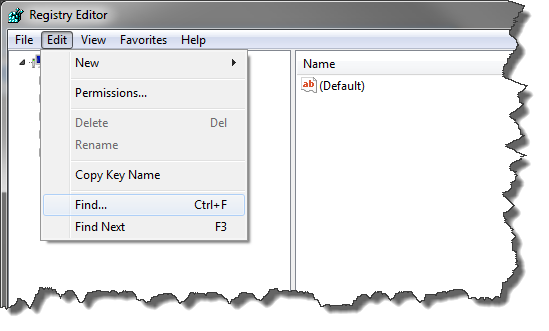
- Select "Edit->Find" from the Top Menu.
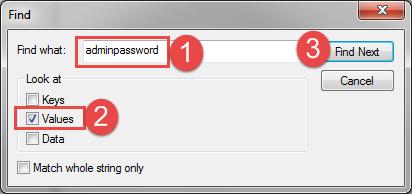
- Enter "adminpassword" (see 1 above)
- Select "Values" (see 2 above)
- Click "Find Next" (see 3 above)
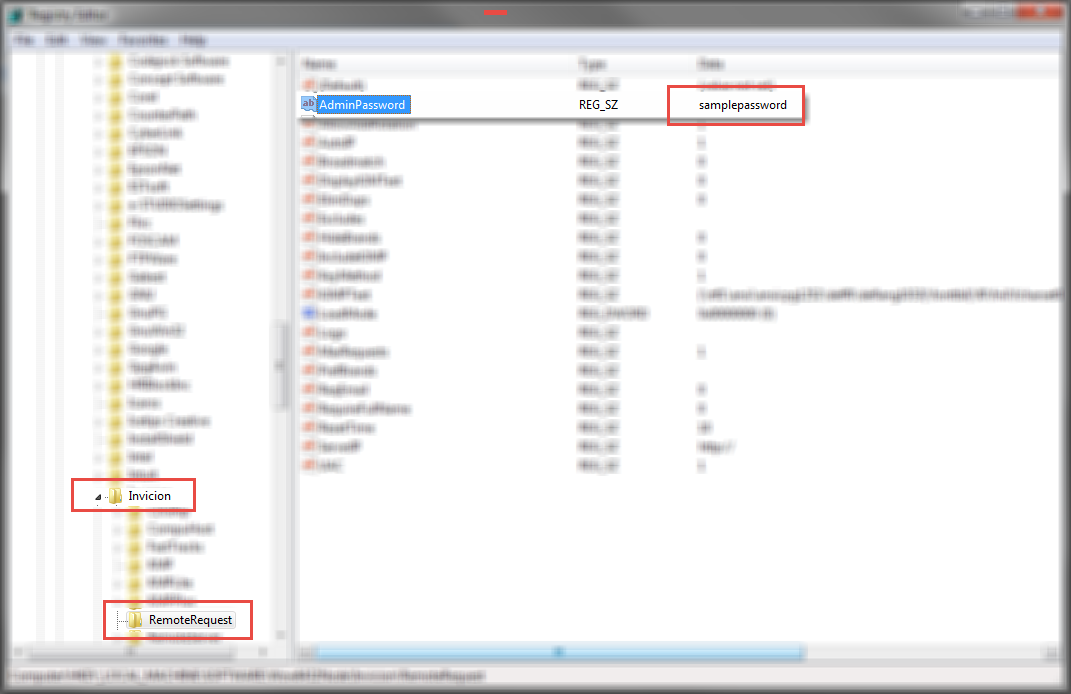
- Ensure the KEY selected in the Left Pane is "Invicion->RemoteRequest" (see above). If not, continue clicking the "Find Next" button until the correct key is selected.
- The password should appear in the right side pane (see above)